Make it your dashboard
Arrange device tiles, room views and household maps for the screens you already use. Controls follow the capabilities Home Assistant exposes.

 Pixora Home Control
Bring Home Assistant into Pixora dashboards and visual Flows, alongside your household’s Planner.
Internet connection required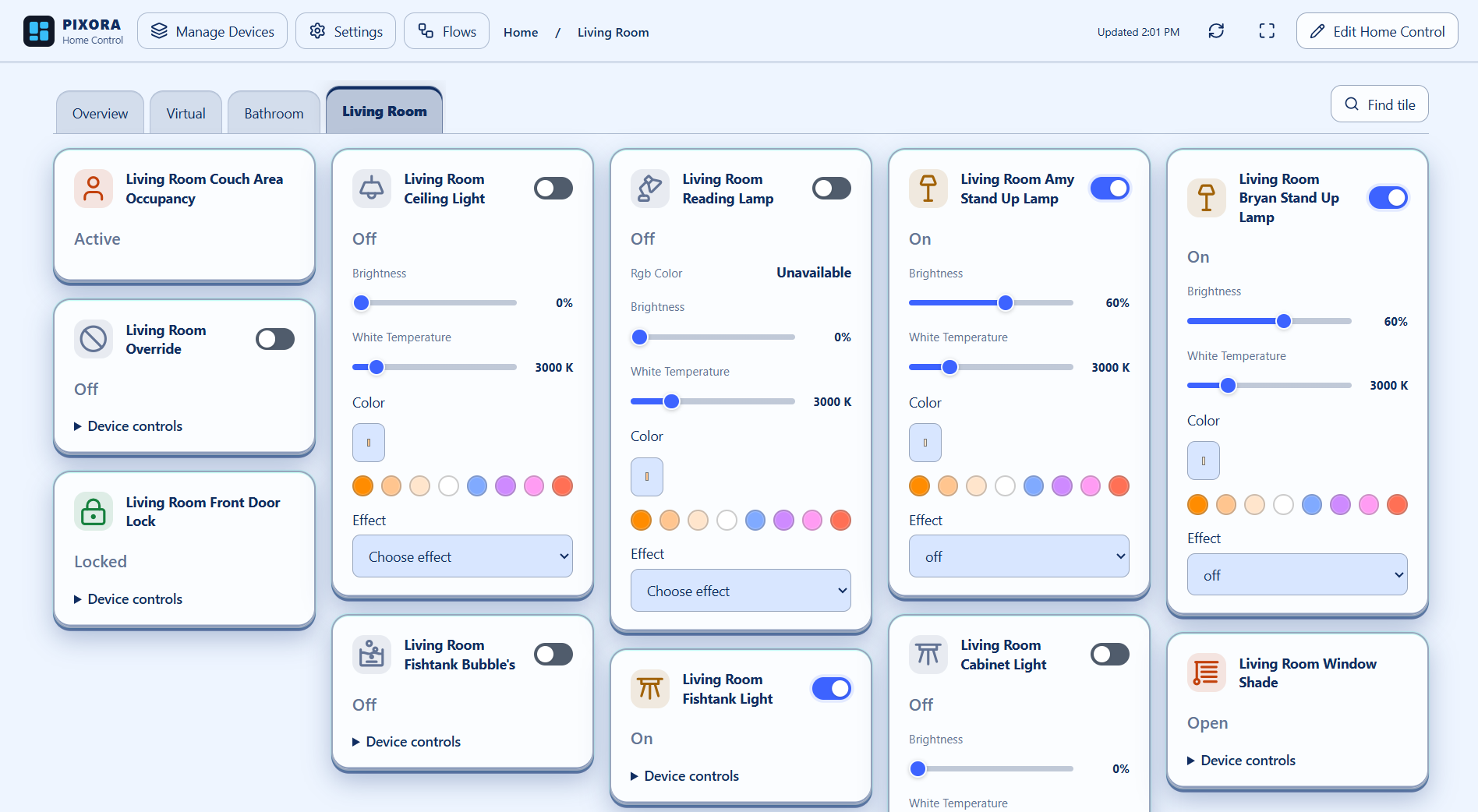
Arrange device tiles, room views and household maps for the screens you already use. Controls follow the capabilities Home Assistant exposes.
Use device events, conditions and actions in Pixora Flows. Flows run on Pixora’s server, independently of an open dashboard.
An outbound connection links your hub to your Pixora account. No public Home Assistant URL or port forwarding is required.
Install Home Control, then open Planner → Smart Home → Home Assistant. Choose Pair Home Control app, enter the one-time code in the app’s configuration, save and start it.
For Home Assistant installations with app support, such as Home Assistant OS. Add the repository once, then install only the apps you need.
Open the app repository ↗https://github.com/bptworld/PixoraHQforHA.